

Learning to use our multi-route parameters can be very useful, especially for users who wish to import a large list and let our route planner divide it into several routes. Below you’ll find a number of parameters that will help you plan multiple routes.
We recommend setting one of these parameters and not all together, to allow the algorithm some flexibility and to avoid errors. Everything can be changed later, by “playing” with these parameters:
Set the number of routes you need considering the number of drivers, trucks or field agents you have available.
This option will divide your list according to number of stops. e.g. if you have sixty stops and you’ve set two routes, each route will be thirty stops long.
If you want your routes to be balanced by distance as well (not only number of stops), you can change the default “Pick Nearest first” to “Pick Farthest first”. This way, the first stops that will be allocated are those far away from the center and the route will come closer and closer to it. However, this option is available only if you set a start address.
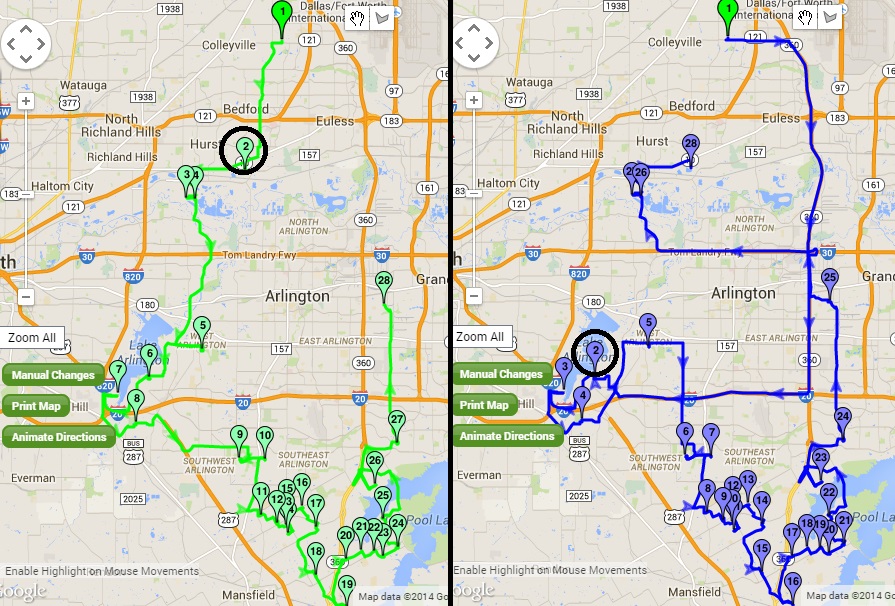
Nearest or Farthest First
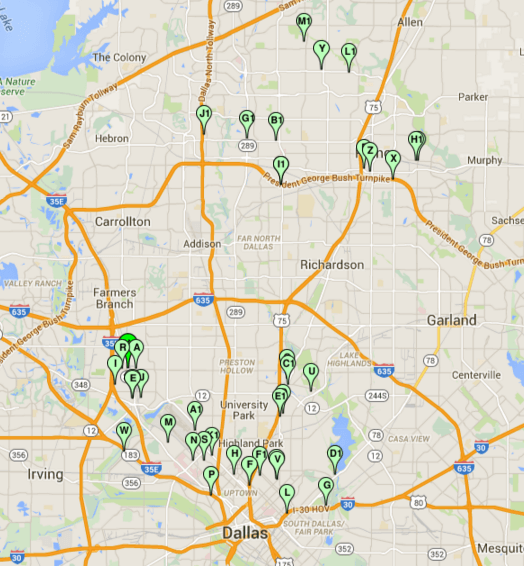 Addresses Before the Route Plan |
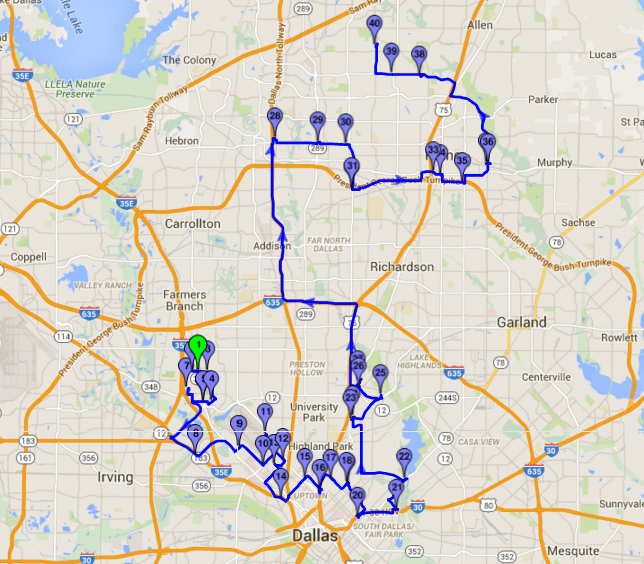 1 Route – Route Plan |
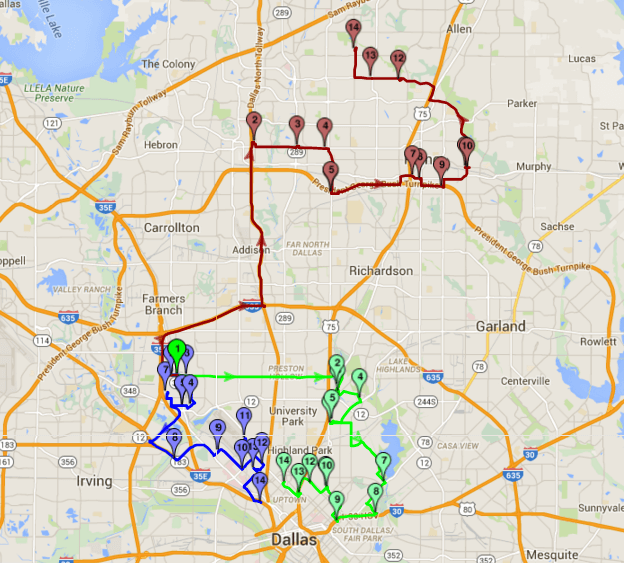 Muti-Routes: Divide to 3 Routes |
This option will divide your list according to the time limit you need considering your work hours. e.g. If you want your driver to have a nine hours work day, you should set the “Max. Route Duration” to nine hours.
If your customers list is long or if the area is so large that we cannot meet this constraint, you’ll be getting more than one route, as long as you leave the number of routes as default (which is “Calculate Best”).
If you change the default value of “Calculate Best” and set a specific number of routes, our route planner will allocate the number of stops that create nine hours routes and will leave the rest of the stops as a list without a route. You can then manually move multiple stops to your existing route or change the Number of routes or increase the “Max. Route Duration”.
If you wish to use “Max Route Duration” with “Service Time”, you should set a realistic “Service Time”. i.e. when you set the “Max. Route Duration”, you should consider the time it takes to visit each location and the distance between them.
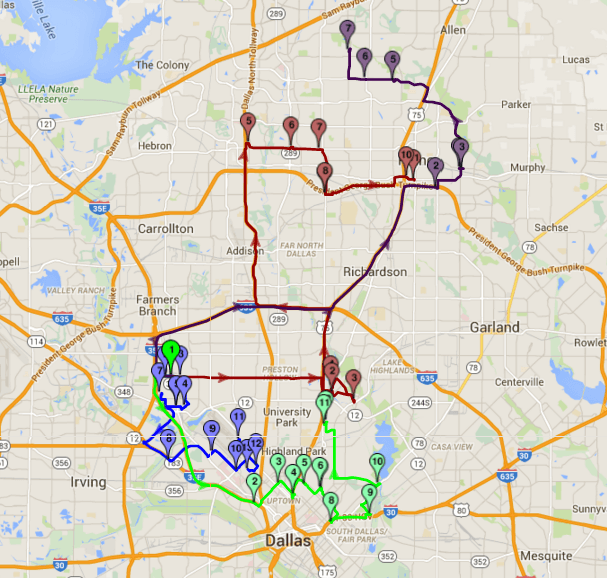 Multi-Routes: Max Route Duration of 3 hours |
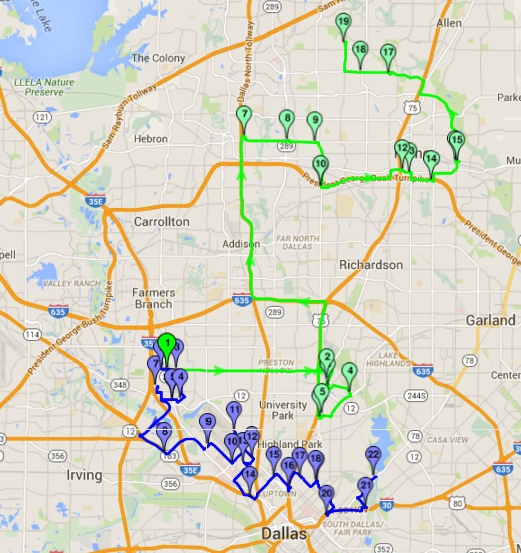 Multi-Routes: Max Route Duration of 5 hours |
This option will divide your list according to the number of stops you need considering the time it takes to visit each stop.
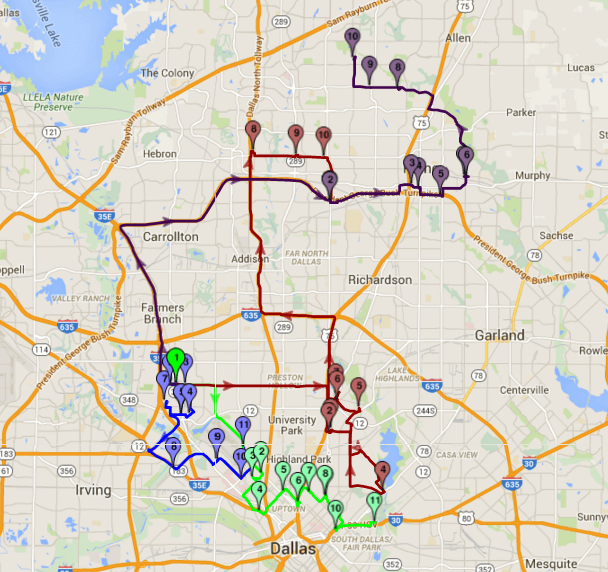
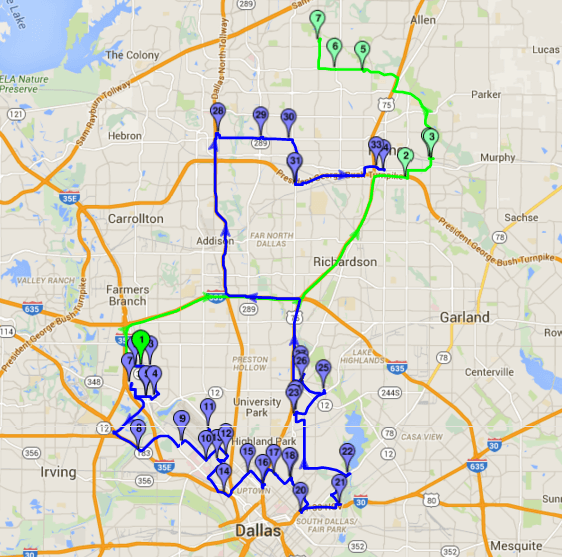
Multi-Routes: 10 Stops Per Route
This option is used when a user decided to set Max. Stops per Route. “Without deviation” means that the Max. stops that was set will be fulfilled. “With deviation” means that the user allows some degree of flexibility in the number of stops limit. When some flexibility is allowed, stops that are very close to each other will be allocated even though the route exceeds the “Max. stops” that was set.
|
Multi-Routes: 10 Stops Per Route |
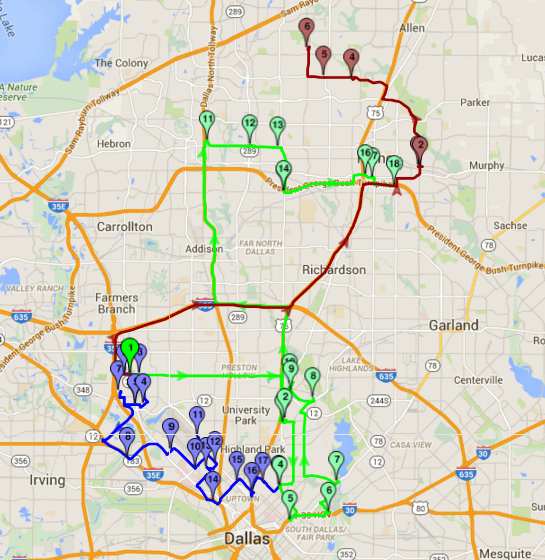 Multi-Routes: 10 Stops Per Route 70% Deviation |
 Multi-Routes: Max Route Duration of 5 hours |
 Multi-Routes: Max Duration 5 Hours with 70% Deviation |