How to Use MyRouteOnline AI Route Planner
Already Know ChatGPT? Click Here to Get Started
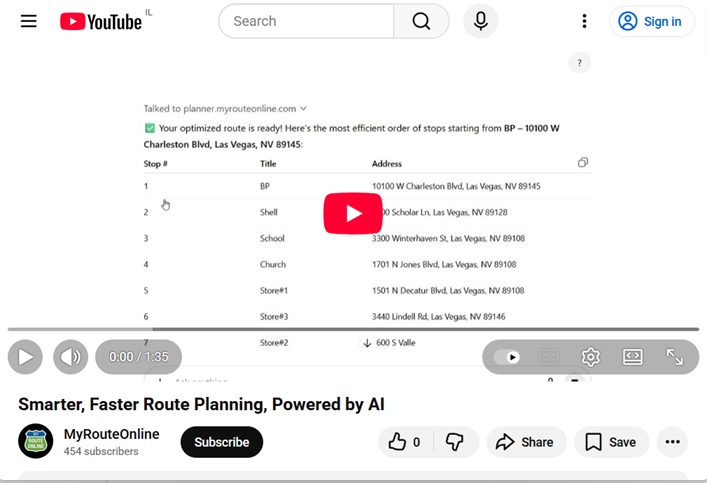
AI Route Planner
Choose a Way to Input your Addresses
- Upload a PDF: Got a document with all your stops? Just upload your PDF and let the AI pull each address, and recognize the different elements of each address.
- Type the addresses manually: Only have a few stops, or prefer to enter them yourself? Simply type the addresses directly into the chat.
- Talk to the assistant: Prefer speaking? Just tell ChatGPT your addresses. The AI understands natural language.
- Import an Excel file: Already have a spreadsheet with your clients? Import your Excel an the addresses will be displayed in the Chat.
Whichever method you choose, MyRouteOnline makes it easy and flexible. You can even include extra info like notes, titles, or phone numbers for each address.
Get an Optimized Route
After you load your addresses, the AI shows a clear table with all your stops, including any details you’ve added.
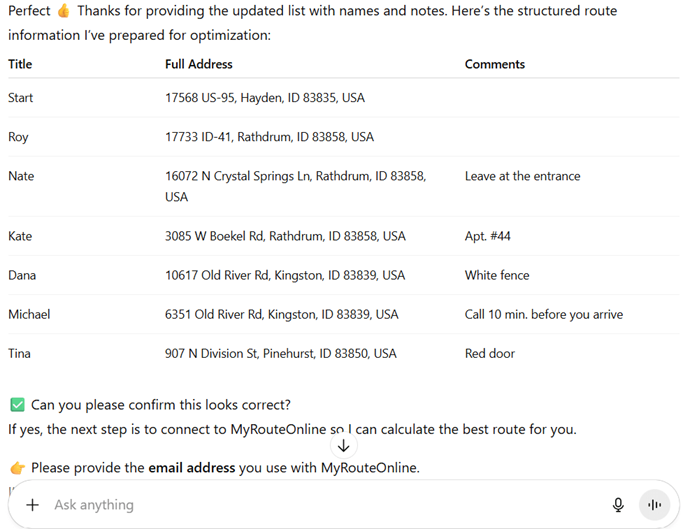
ChatGPT Addresses
The AI will then ask you to enter your username and a one-time code will be sent to your mailbox. Paste this code into the chat and you’ll get an optimized route with the shortest and most efficient journey.
Once your Route is planned
You’ll have a number of ways to use your planned route.
Scroll down a little and you’ll have 3 links to:
- Review your route on a printable map
- Edit your route with the Route Planner
- Navigate your route with your smartphone
No tech skills needed. Whether you talk, type, upload, or import, the MyRouteOnline ChatGPT AI Route Planner helps you plan smarter, faster, and easier.
FAQ about ChatGPT Route Planning
How can I use ChatGPT for multi-stop route planning?
By connecting the MyRouteOnline GPT to your ChatGPT account, you can simply paste a list of addresses or describe your stops in the chat. The AI will then use our professional optimization engine to sequence them in the most efficient driving order.
Does ChatGPT show a map of the optimized route?
Yes. After optimizing your stops, ChatGPT displays a visual map of your route directly in the chat window. This allows you to review the driving path before clicking the link to start turn-by-turn navigation in the MyRoute app.
Can ChatGPT handle more than 10 stops for navigation?
Yes. While standard map integrations in ChatGPT often struggle with more than 10 stops, the MyRouteOnline integration allows you to optimize large lists of addresses and provides a single link to navigate them all.
Do I need to manually type addresses into ChatGPT?
No. You can upload an Excel, CSV, or text file directly to the chat. ChatGPT will read the data and MyRouteOnline will optimize the route, saving you significant time on manual data entry.
How do I open a ChatGPT route in my phone’s GPS?
Once ChatGPT finishes the optimization, it will provide a MyRoute navigation link. Open this link on your smartphone to start turn-by-turn navigation in the MyRoute app which works with Google Maps and Waze.
Is it safe to share my MyRouteOnline data with ChatGPT?
The connection uses secure API authentication. Your MyRouteOnline login credentials are not shared with ChatGPT, ensuring your account remains private and secure.