Can You Save a Route in Google Maps? In MyRouteOnline you Can
Google Maps lets you save individual places, restaurants, addresses, landmarks, to your lists. But saving a complete multi-stop route in Google Maps, one you can reload, edit, and reuse the next day, is not something Google Maps supports. A route you build in Google Maps exists only in that session. Close the browser or the app and it is gone. You would need to re-enter every stop from scratch the next time.
If you regularly drive the same delivery run, service circuit, or sales territory, that is a real problem. MyRouteOnline solves it. You plan your multi-stop route once, save it to your account with a name you choose, and reload it on any device at any time, editing it, re-optimizing it, and dispatching it to your drivers without starting from scratch.
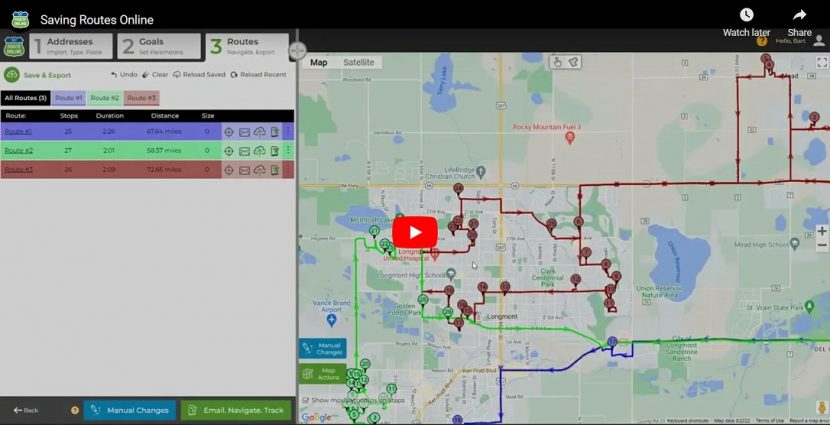
Saving Routes Online
Google Maps vs MyRouteOnline: Saving and Reloading Routes
| Google Maps | MyRouteOnline | |
|---|---|---|
| Save individual places | Yes | Yes |
| Save a complete multi-stop route | No | Yes |
| Reload a saved route later | No | Yes |
| Edit a saved route | No | Yes |
| Access saved route on any device | No | Yes |
| Share saved route with a driver | No | Yes |
| Plan recurring routes | No | Yes |
How to Save a Route in MyRouteOnline
- Plan your route and optimize it in the planner.
- Click the Save button at the top of the Results tab.
- Give the route a name, something descriptive like “Monday Deliveries North Zone” so you can identify it quickly when reloading.
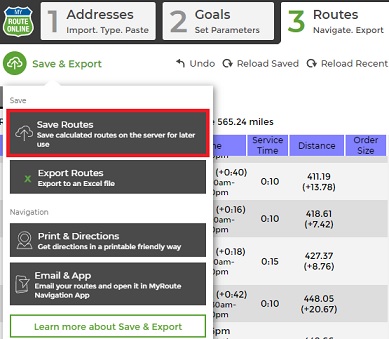
Save routes online
Your route is saved to your account on MyRouteOnline’s secure servers and is accessible from any browser on any device the next time you log in. There is no limit on the number of routes you can save, as long as your account is active.
How to Reload a Saved Route
Reloading a previously saved route brings it back to the map exactly as it was when you last saved it, all stops, all sequence, all imported data intact.
- Click Reload My Routes in the Import and Reload panel.
- Select the route you want to reload from your saved routes list.
- The route loads onto the map immediately, ready to use, edit, or redispatch.
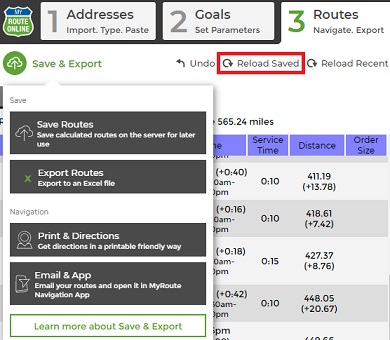
Reload saved routes
How to Modify a Saved Route
For businesses with recurring routes, weekly deliveries to the same customers, monthly service visits, annual campaign distributions, the modify workflow saves significant planning time each session.
- Reload your saved route.
- Make your changes, add new stops, remove completed ones, adjust the sequence manually, or re-optimize the entire route.
- Click Save to store the updated version.
Each time you save a modified route, MyRouteOnline creates a new copy rather than overwriting the original. You can keep multiple versions of the same route and delete unused copies from your saved routes list at any time.
Who Uses Route Saving and Reloading
The save and reload feature is most valuable for operations with consistent recurring patterns where rebuilding the route from scratch every session would waste significant time.
- Delivery businesses with regular customer lists that change only slightly from week to week, reload Monday’s route, update the addresses that have changed, re-optimize, and dispatch.
- Field service companies with recurring maintenance contracts, reload the monthly service circuit, add any new bookings, remove completed one-off jobs.
- Sales representatives with regular territory visit cycles, reload the weekly account visit route and adjust for any meetings that were rescheduled.
- Nonprofits and volunteer organizations with annual campaigns, save this year’s campaign route and reload it next year, updating only the addresses that have changed.
- Dispatchers managing multiple drivers, save each driver’s territory route and reload all of them at the start of each session without rebuilding from scratch.
FAQ about Saving and Reloading Routes
Can you save a route in Google Maps?
Google Maps allows you to save individual places and addresses to your lists, but it does not support saving a complete multi-stop route for later reuse. If you close Google Maps after building a route, the stop sequence is lost and must be re-entered from scratch. For saving, reloading, and reusing multi-stop routes, a dedicated route planner like MyRouteOnline is required.
How do I save a multi-stop route so I can use it again?
In MyRouteOnline, click Save after planning your route and give it a name. The route is stored in your account and can be reloaded at any time from any device by clicking Reload My Routes and selecting the saved route from your list. You can then re-optimize it, make manual edits, and dispatch it to drivers without rebuilding from scratch.
Can I access my saved route on a different device?
Yes. Saved routes in MyRouteOnline are stored on secure servers linked to your account, not on your local device. Log in from any browser on any computer, tablet, or smartphone and your saved routes are available immediately.
Can I edit a saved route without losing the original?
Yes. Each time you save a modified version of a route, MyRouteOnline creates a new copy rather than overwriting the original. You can keep multiple versions of the same route and delete unused copies from your saved routes list.
How many routes can I save?
There is no fixed limit on the number of routes you can save to your MyRouteOnline account. Classic, Premium, Professional, and Business plan subscribers all have access to the save and reload feature.
Does saving a route use address credits?
No. Saving and reloading routes does not consume address credits. Address credits are only used when new unique addresses are geocoded for the first time during the import and planning process. Reloading a previously saved route reuses the geocoded data already stored, so no additional credits are consumed.