How to Use our Multiple Route Creator
MyRouteOnline is a powerful route calculator and route creator that helps you optimize your journeys with multiple stops. The route creator can handle as many as 1000 addresses, making it ideal for complex route planning.
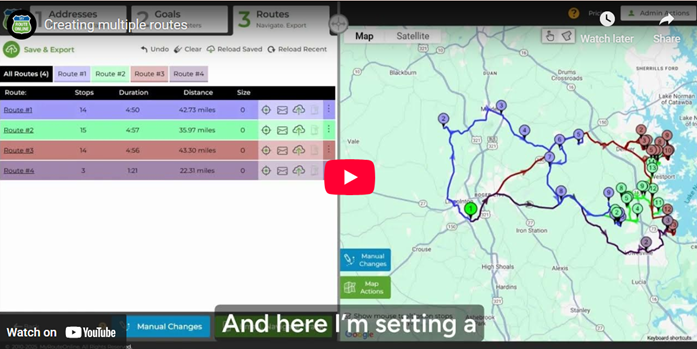
Creating multiple routes
- Visit the MyRouteOnline Route Calculator and log in to your account.
If you don’t have an account, you can start with a free trial. - Click on “Import” to add your destinations.
- Upload an Excel or CSV file with your address list
- Type addresses manually
- Import from your Google Drive account
- Click “Set Goals” to configure your route parameters.
- Set one of the Multi Routing parameters:
- Number of routes
- Max. Duration
- Max. stops per route
- Either one will divide your list into several routes.
- Click Plan My Route.
- Once satisfied with your routes, you can export them in various formats:
- Send to your GPS device
- Print turn-by-turn driving directions
- Share with your mobile device
You can import addresses in several ways:
The route calculator will process your inputs and generate the most efficient route(s) based on your specifications.
MyRouteOnline offers a companion mobile app for both iPhone and Android, allowing you to access your planned routes on the go.
FAQ about Planning Multiple Routes
Everything dispatchers, fleet managers, and delivery coordinators need to know about planning multiple driver routes simultaneously in MyRouteOnline.
Can MyRouteOnline plan routes for multiple drivers at the same time?
Yes. MyRouteOnline’s Route Creator is specifically designed to generate optimized routes for multiple drivers in a single planning session. You import one address list containing all your stops, set the number of routes you need in the Goals section, and click Plan My Route. The system divides your full address list across all routes simultaneously, balancing the stops efficiently between drivers. There is no need to manually split your address list before importing. MyRouteOnline handles the division automatically based on the parameters you set.
How do I set the number of routes I want to create?
After importing your addresses, click Set Goals to open the routing parameters panel. In the Multi Routing section, enter the number of routes you want to generate in the “Number of Routes” field. This tells MyRouteOnline how many individual driver routes to create from your full address list. You can combine this setting with Maximum Duration or Maximum Stops Per Route to further control how stops are distributed. Once your parameters are set, click Plan My Route and all routes are generated simultaneously.
What is the Maximum Duration setting and when should I use it?
Maximum Duration sets the longest total driving time allowed for any single route in your plan. When you set a maximum duration, for example four hours, MyRouteOnline ensures that no individual driver’s route exceeds that time limit. If your full address list cannot be covered within that duration constraint across the number of routes you specified, the system will distribute stops accordingly, which may result in some stops being flagged as unassigned. Use Maximum Duration when your drivers have a fixed working window, such as a morning shift ending at a specific time, and you need the route plan to respect that constraint regardless of how many stops are covered.
What is the Maximum Stops Per Route setting and when should I use it?
Maximum Stops Per Route sets the highest number of individual stops that any single driver’s route can contain. When you set this limit, for example 25 stops, no single route in your plan will exceed that stop count. This is useful when drivers have physical capacity limits, such as a van that can only carry a certain number of packages, or when your operational standard requires a maximum number of service calls per technician per day. You can use Maximum Stops Per Route on its own or alongside the Number of Routes and Maximum Duration settings to precisely control how your address list is divided.
How does MyRouteOnline decide which stops go to which driver?
MyRouteOnline’s optimization algorithm assigns stops to routes based on geographic efficiency, grouping stops that are geographically close together into the same route so that each driver’s journey is as compact and logical as possible. The algorithm balances this geographic clustering with your defined constraints, including number of routes, maximum duration, and maximum stops per route, to produce a division that minimizes total drive time across all routes simultaneously. If you have predefined territories assigned to your address list, the system also respects those territory boundaries when dividing stops between routes, ensuring each driver stays within their designated geographic zone.
Can I assign stops to specific drivers rather than letting the system decide?
Yes. You can preassign stops to specific routes using the Territory feature. In your import spreadsheet, include a Territory column and assign each stop to the territory or driver it should be routed to. When you import the file and plan multiple routes, the system respects those territory assignments and routes each driver only through the stops assigned to their zone. Alternatively, after the routes are generated automatically, you can manually drag and drop stops between routes in the route list to reassign individual stops to a different driver. The affected routes recalculate automatically whenever you move a stop.
How many stops can I plan across all routes in a single session?
The total number of stops you can optimize in a single planning session depends on your plan. Classic and Premium plans support up to 350 stops per session across all routes combined. The Professional plan supports up to 500 stops, and the Business plan supports up to 1,000 stops. For a fleet of ten drivers on the Business plan, that allows up to 100 stops per driver on average from a single import, sufficient for most commercial delivery and service operations. If your total stop count exceeds your plan’s limit, use the list-splitting feature to divide your address list into batches and plan them in separate sessions.
Can I manually edit the routes after they have been generated?
Yes. After MyRouteOnline generates all routes, you can make manual adjustments before dispatching. Drag and drop individual stops to a different position within the same route to change the visiting sequence. Move a stop from one driver’s route to another by dragging it across route boundaries in the route list. Delete stops that should not be included in this session. Add new stops and re-optimize. Use the polygon selection tool on the map to select a group of stops by drawing around them and move the entire group to a different route at once. All routes recalculate automatically whenever changes are made, keeping arrival time estimates and total durations accurate throughout your editing session.
How do I send each driver their individual route?
Once all routes are finalized, you can dispatch each driver’s route individually or all at once. Email each driver their route directly from the planner. Each driver receives their own individual email containing their stops, a link to view their route on the map, and a link to navigate it using the free MyRoute app on their smartphone. You can also share each route via a direct link, generate a QR code per route for drivers to scan, export routes to TomTom or Garmin GPS devices, or print individual paper maps with turn-by-turn directions for each driver. All export and dispatch options are available simultaneously, so you can email some drivers while printing paper routes for others in the same session.
Can drivers track their progress and mark stops as complete?
Yes. Drivers navigate their routes using the free MyRoute app on their iPhone or Android device. As they complete each stop, they mark it as done directly in the app. From the web-based planner, the dispatcher can monitor the live progress of all drivers simultaneously, seeing which stops have been completed, which are still pending, and where each driver currently is in their route. This live tracking view updates in real time without requiring drivers to call in or send messages. If a driver is running behind schedule or a stop needs to be reassigned mid-day, the dispatcher can update the route and resend it to the affected driver’s app immediately.
What happens if I need to add a new stop after routes have already been dispatched?
You can add a new stop to any driver’s route at any time after dispatch. Add the address to the relevant route in the planner, re-optimize or manually position the stop in the sequence, and resend the updated route to the driver’s MyRoute app. The driver receives the updated route on their phone without needing to call in or navigate back to base. If the new stop significantly changes the route, the dispatcher can choose to re-optimize the entire affected route or simply insert the new stop at the most appropriate position manually.
Can I save multi-driver route plans and reload them for recurring use?
Yes. All planned routes, including multi-driver plans, can be saved to your MyRouteOnline account and reloaded at any time. For businesses with recurring delivery or service routes that cover the same customers on a regular cycle, saving the route plan means you only need to update the stops that have changed at the start of each new session rather than rebuilding the entire plan from scratch. Reload the saved plan, make your updates, re-optimize if needed, and dispatch. This significantly reduces planning time for operations with consistent weekly or monthly route patterns.