Can Ask Maps Plan a Delivery Route? We Tested it with 15 Stops
November 23, 2026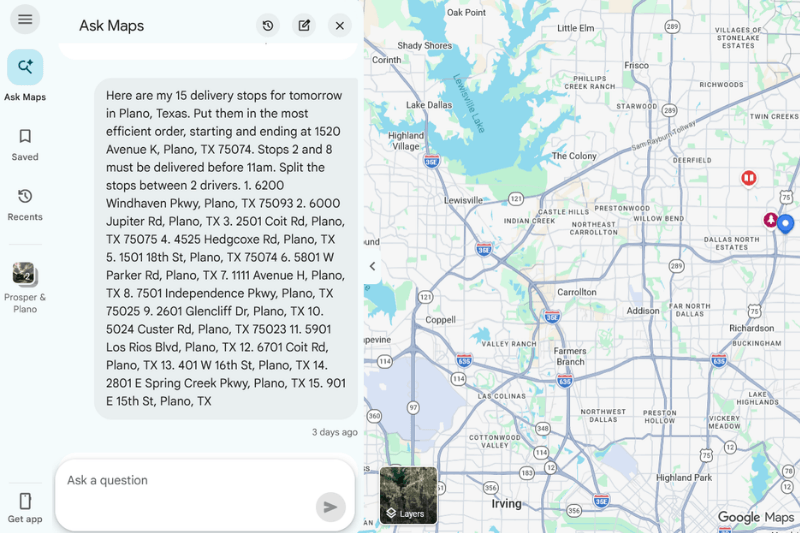
Short answer: Yes, for a small delivery day, and with limits. In November 2026, Google added itineraries to Ask Maps, the Gemini-powered chat inside Google Maps. We tested it with a real delivery-style request: 15 stops in Plano, Texas, 2 drivers, and 2 stops that had to be delivered before 11am. Ask Maps split the stops into a west route and an east route, put both deadline stops first, and explained its reasoning. That is a real step forward. What it did not give us was any way to check the result: no total miles or drive time per route, no service time at each stop, and no way to send the routes to drivers, track them, or capture proof of delivery. For a one-off day with a handful of stops, Ask Maps may be enough. For a daily delivery operation, a multi-stop route planner is still the better tool.
Below is exactly what we asked, what Ask Maps returned, and how to decide which tool fits your delivery day.
What Google Maps Ask Maps Itineraries do
According to Google’s announcement on November 16, 2026, Ask Maps itineraries:
- Turn a plain-language request into a day-by-day plan with a numbered map pin for each stop
- Let you add stops by asking, and tap to get directions to the next stop
- Show live traffic and whether a place is open while you travel
- Can be shared with others or exported to Google Docs on desktop
- Are rolling out on Android and iOS wherever Ask Maps is offered, which Google says is now more than 200 countries and territories
Google presented the feature as a trip planner, with examples like holiday shopping and a three-day road trip. It did not mention delivery routes, stop-order optimization, or multiple drivers. So we tested those ourselves.
Our Test: 15 Delivery Stops, 2 Drivers, 2 Deadlines
We used 15 public addresses in Plano, Texas (libraries and city parks and recreation facilities), listed in a deliberately random order. The start and end point was 1520 Avenue K, Plano, TX 75074. This is the prompt we gave Ask Maps:
“Here are my 15 delivery stops for tomorrow in Plano, Texas. Put them in the most efficient order, starting and ending at 1520 Avenue K, Plano, TX 75074. Stops 2 and 8 must be delivered before 11am. Split the stops between 2 drivers.”
The two deadline stops were on opposite sides of the city: 6000 Jupiter Rd in the east and 7501 Independence Pkwy in the north.
Ask Maps returned two routes.
Driver 1: West route (8 stops)
Ask Maps described this route as covering the western side of Plano, handling the Independence Parkway deadline first, then looping north and sweeping back down.
- 7501 Independence Pkwy (before 11am)
- 4525 Hedgcoxe Rd
- 6200 Windhaven Pkwy
- 5801 W Parker Rd
- 2501 Coit Rd
- 2601 Glencliff Dr
- 6701 Coit Rd
- 5024 Custer Rd
Driver 2: East route (7 stops)
Ask Maps described this route as handling the eastern and central stops near the starting point, with the Jupiter Road deadline first.
- 6000 Jupiter Rd (before 11am)
- 5901 Los Rios Blvd
- 2801 E Spring Creek Pkwy
- 1501 18th St
- 1111 Avenue H
- 401 W 16th St
- 901 E 15th St
Both routes started and ended at 1520 Avenue K.
What Ask Maps Got Right
- It accepted a pasted list of 15 addresses. No need to add stops one at a time.
- It split the work between 2 drivers. The split followed geography, with one driver taking the west and north and the other taking the east and downtown.
- It reordered the stops. The routes did not follow the random order we entered.
- It handled the deadlines. Each deadline stop went to a different driver and was placed first on that route.
- It explained its reasoning in plain language, which makes the plan easy to understand and adjust.
For a small business that has never used a route planner, this is a big improvement over the old Google Maps workflow of entering about 10 stops by hand and dragging them into order.
What Our Test did not Show
A plan that looks sensible on a map is not the same as a plan you can rely on every day. Several things were missing from the result:
- No miles or drive time. The plan did not include total distance or time for either route, so there was no way to tell whether this was the shortest option or just a reasonable one.
- No arrival times. “Put the deadline stop first” works when there are 2 deadlines. With 10 customers who each have a different time window, you need estimated arrival times at every stop to know if the plan works.
- No service time or vehicle capacity. We did not tell it how long each stop takes or how much each van can carry, and the chat did not ask.
- No driver app, tracking, or proof of delivery. The output is a plan in a chat. Getting each route to the right driver, seeing which stops are done, and capturing a photo or signature all happen somewhere else.
- No saved, reusable routes. Many delivery businesses run similar routes every day. Re-typing the list and re-checking a new AI answer each morning adds up.
- One test at 15 stops. We did not test 50, 100, or several hundred stops, and Google has not published a limit for itineraries.
AI chat answers can also vary from one run to the next. Before you rely on Ask Maps for daily routing, run the same list a few times and check whether you get the same plan.
Why the Order Still Matters
Finding the best order for a list of stops is a version of what mathematicians call the traveling salesman problem. The number of possible orders grows very fast. With 10 stops there are 3,628,800 possible sequences. With 15 stops there are more than 1.3 trillion. Add a second driver, deadlines, and service times, and the number of options grows again.
A plan that groups stops by area is a good start, but small differences in sequence add miles every day. Route optimization software calculates distance and time for the whole plan, so you can see what each route costs before drivers leave.
Ask Maps vs a Route Planner: Side-by-Side
| Feature | Google Maps Ask Maps | MyRouteOnline route planner |
| Main job | Discover places and plan trips, through chat | Optimize multi-stop routes for work |
| How you add stops | Type or paste addresses into the chat | Import from Excel, CSV, text, Google Drive, or Dropbox, or enter manually |
| Stop order | Reordered by AI in our test, with no mileage shown | Automatically optimized, with distance and time for each route |
| Number of stops | Handled 15 in our test; no published limit | Up to 1,000 addresses per run |
| Multiple drivers | Split 15 stops into 2 routes in our test | Unlimited routes at once, with territories and automatic route splitting by duration or stop count |
| Deadlines | Placed 2 deadline stops first in our test | Time windows for each stop |
| Service time and capacity | Not part of the result in our test | Per-stop service time, order size, and vehicle volume |
| Driver app | Google Maps | MyRoute app, which works with Google Maps, Waze, or any navigation app on the phone |
| Proof of delivery and tracking | No | Photo and signature proof of delivery, plus planned vs. actual tracking for the office |
| Saving and export | Itinerary saved in Ask Maps chat history; share or export to Google Docs | Unlimited saved routes; export to Excel, email routes, or send to Google Maps, TomTom, or Garmin |
| Cost | Free | From $19 for 50 credits, with 20 free credits to try every feature |
When Ask Maps is Enough
Based on our test, Ask Maps is a reasonable choice when:
- You plan a delivery day only occasionally
- You have a small number of stops and one or two drivers
- You have only one or two simple deadlines
- Your drivers already use Google Maps and you do not need tracking or proof of delivery
- You also want help finding places, such as fuel, parking, or lunch along the way
When you Need a Route Planner Instead
A route planner is the better fit when any of these are true:
- You deliver every day and want a plan you can measure and repeat
- You have dozens or hundreds of stops
- Many customers have their own time windows
- You need to account for service time at each stop or vehicle capacity
- You need to send routes to drivers, track progress, and capture proof of delivery
- Your addresses come from a spreadsheet or order system, not a chat
For more on where standard Google Maps stops, see our guide to Google Maps route planning limits, and this comparison of alternatives to Google Maps for multi-stop routing.
How to Use Ask Maps and a Route Planner Together
- Use Ask Maps for discovery. Scout a new area, build a prospect list, or find breaks along the way.
- Keep your stops in a spreadsheet. Add notes like gate codes in a comments column.
- Optimize in a route planner. Import the list into the MyRouteOnline route planner, set your start point, time windows, service times, and number of drivers, and compare the miles and time for each route.
- Send routes to drivers. Email routes or load them into the MyRoute app, which sends each stop to Google Maps, Waze, or another navigation app on the driver’s phone.
- Track the day. Review planned vs. actual time and distance, and see which orders were completed.
If you like planning in plain language, the MyRouteOnline AI Route Planner lets you describe your stops by text in ChatGPT and get an optimized route. You can read more in can AI plan my delivery route, and for the original Ask Maps launch, see what Ask Maps can and cannot do for business routes.
The Bottom Line
Ask Maps can now do more than most people expect. In our test, it took 15 stops, split them between 2 drivers, and respected 2 deadlines. For an occasional, small delivery day, that may be all you need. For a daily operation, what matters is being able to measure the plan, account for time windows, service time and capacity, and get routes to drivers and track them. That is still the job of a dedicated route planner, with Google Maps doing the driving.
FAQ About Google Maps Ask Maps and Delivery Routes
Can Google Maps Ask Maps plan a delivery route?
Yes, for small jobs. In our November 2026 test, Ask Maps took 15 pasted addresses in Plano, Texas, split them into 2 routes for 2 drivers, and placed 2 deadline stops first. It did not show miles, drive time, or arrival times, and it does not send routes to drivers or track deliveries.
Does Ask Maps put stops in the most efficient order?
Ask Maps reordered our stops into geographic groups, but it did not show total distance or time, so there was no way to confirm the order was the shortest. Route optimization software shows the miles and time for each route so you can check.
Can Ask Maps split stops between multiple drivers?
In our test, yes. We asked for 2 drivers and got a west route with 8 stops and an east route with 7 stops. Google has not documented this as a feature, so results may vary.
Can Ask Maps handle delivery time windows?
It handled 2 “before 11am” stops by putting each one first on a different route. It did not give arrival times, so it is hard to confirm deadlines when many stops have their own time windows.
How many stops can Ask Maps handle?
We tested 15 stops successfully. Google has not published a stop limit for Ask Maps itineraries. MyRouteOnline can optimize up to 1,000 addresses per run on every plan.
Where is Ask Maps available?
Google says Ask Maps is available in more than 200 countries and territories after expanding to 30 European countries, including the UK, in November 2026. It works in the Google Maps app on Android and iOS, and on desktop through the Google Maps menu.
What is the best way to plan a delivery day with many stops?
Keep your addresses in a spreadsheet, import them into a multi-stop route planner such as MyRouteOnline, set time windows, service times, and the number of drivers, and let it optimize. Then send each route to the driver’s phone for navigation.
Can drivers still navigate with Google Maps if I use a route planner?
Yes. MyRouteOnline routes can be exported to Google Maps, and the MyRoute app passes each stop to Google Maps, Waze, or any navigation app installed on the driver’s phone.