How to Import a File (Excel, txt, csv)
You can import your file from several locations:
- Import from your local computer hard-drive
- Import from Dropbox
- Import from Google Drive
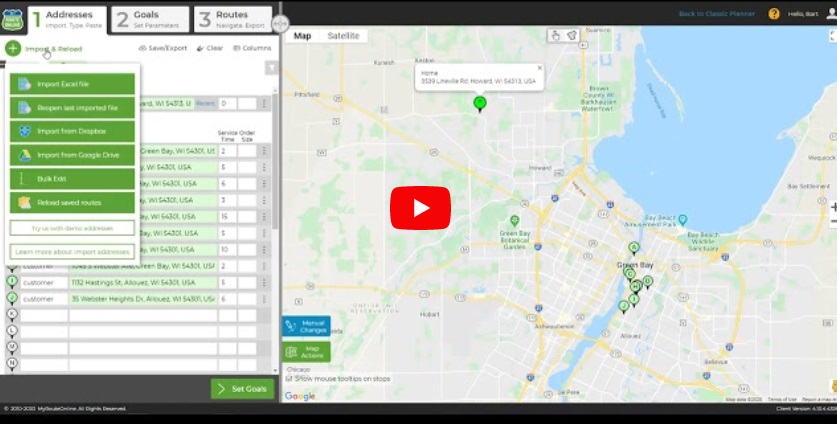
Import Exel File
- Have your file (Excel spreadsheet or text file) ready with your contact list and make sure it does not exceed the size of 5MB.
Besides addresses, this list can include Titles, Service Time, Comments, and more. - Click Import & Reload.
- Click Import Excel file and select where to import your file from.
- Select the file you wish to upload to MyRouteOnline.
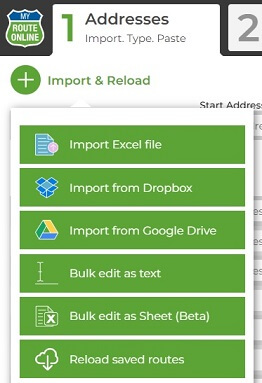
Import and Reload
When the Import Wizard opens, follow these steps:
- Select the sheet that contains your addresses.
- Check Ignore the first row if it contains the column header.
- Check First/Last addresses if you have any.
- Select the right header for each column (Address/Title/Service Time/Filter-in/Filter-out/Comment/Ignore).
- Review the import result and click Import Now to import your contacts.
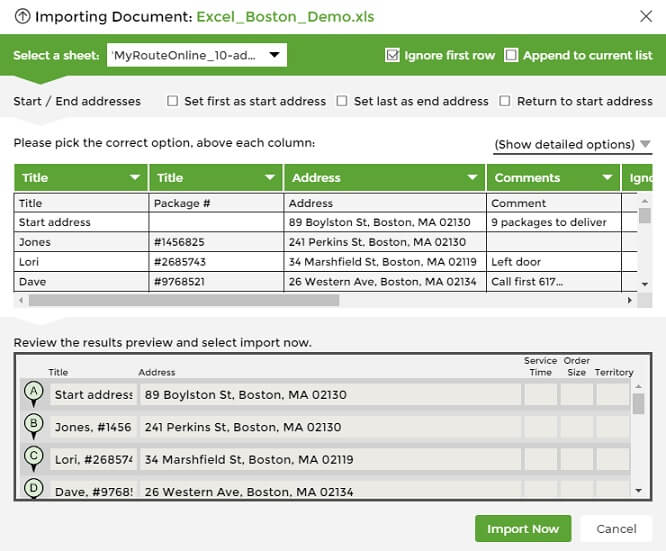
Import Wizard
FAQ about Importing Addresses into MyRouteOnline
Everything you need to know about importing Excel, CSV, Google Sheets, and other address files into MyRouteOnline’s route planner.
Can I import an Excel spreadsheet directly into MyRouteOnline?
Yes. MyRouteOnline accepts Excel files in .xlsx and .xls format for direct upload. You do not need to convert your file or reformat it, the Import Wizard reads your spreadsheet as-is, presents your columns for mapping, and imports your addresses in under a minute. Files up to 5MB are supported. If your file exceeds 5MB due to macros or formulas, save a copy as an Excel Binary Workbook (.xlsb) to reduce the size before uploading.
What file types can I upload to MyRouteOnline?
MyRouteOnline supports Microsoft Excel (.xlsx and .xls), CSV (comma-separated values), and plain text (.txt) files for direct upload. You can also import directly from Google Drive and Google Sheets via integration, or from Dropbox via cloud connection, without downloading the file first. The maximum file size for any upload is 5MB.
Does my spreadsheet need to be in a specific format or template?
No specific format or template is required. The Import Wizard works with almost any spreadsheet structure, addresses in a single combined column or split across multiple columns, with or without header rows, labelled or unlabelled. The Wizard presents each column with a dropdown so you can assign it to the correct field. Columns already labelled with standard names like “Address” or “Title” are mapped automatically.
How does the Import Wizard work?
After uploading your file, the Import Wizard opens automatically and displays a preview of your spreadsheet. You select the correct sheet, check “Ignore the first row” if your spreadsheet has a header row, set a fixed First or Last address if needed, assign each column to the correct field (Address, Title, Service Time, Comments, Filter-in, Filter-out, or Ignore), review the import preview, and click “Import Now.” The Wizard typically takes 30 to 60 seconds to complete for a standard business address list.
Can I import customer names, delivery notes, and phone numbers alongside addresses?
Yes. In addition to the address, your spreadsheet can include Titles (customer names or stop labels), Comments (delivery notes, access codes, phone numbers, or special instructions), and Service Time (time in minutes to spend at each stop). All imported data travels with the address through the entire workflow and appears in the route plan, the driver’s navigation view in the MyRoute app, emailed route sheets, and the exported Excel output. Multiple Comments columns are supported.
What does a red address mean after I import my file?
After import, every address is geocoded using Google Maps‘ API, checked against the global address database and confirmed as a navigable location. Addresses shown in red could not be matched to a specific location. Common causes are misspellings, missing zip or postal codes, or incomplete street information. To resolve a red address, edit the address text in the planner with a corrected or more complete version, or use the manual pin placement option to locate the property on the map. Red addresses should be resolved before route planning begins.
Can I import addresses from Google Sheets without downloading the file?
Yes. MyRouteOnline integrates directly with Google Drive and Google Sheets. In the Import & Reload panel, select the Google Drive option and connect your Google account. You can then browse your Drive and import from any Google Sheet directly, without downloading or converting the file first.
Can I import addresses from Dropbox?
Yes. In the Import & Reload panel, select the Dropbox option and connect your Dropbox account. You can then browse your Dropbox folders and import Excel or CSV files stored in the cloud without downloading them to your local computer first.
Can I include delivery time windows in my import file?
Yes. If your spreadsheet contains time window columns specifying the earliest and latest acceptable arrival time per stop, map these fields during the Import Wizard. The route optimizer uses these constraints when sequencing stops — respecting the required arrival windows for each customer while still finding the most efficient overall route order. This is particularly useful for delivery operations where customers have been given specific arrival slots, or for field service businesses with appointment-based scheduling.
Can I filter my address list during import to route only certain stops from a larger list?
Yes. MyRouteOnline supports import filtering using Filter-in and Filter-out column mapping. In the Import Wizard, assign a column in your spreadsheet as Filter-in or Filter-out. Rows marked as Filter-in are included in the route; rows marked as Filter-out are excluded. This allows you to maintain a single master address list and selectively route a subset of it on any given day. For example, only the stops assigned to a specific territory, driver, or delivery day, without editing the original spreadsheet.
How many addresses can I import in a single file?
The number of addresses you can optimize in a single session depends on your plan. Classic and Premium plans support up to 350 stops per session. The Professional plan supports up to 500 stops. The Business plan supports up to 1,000 stops. If your address list exceeds your plan’s per-session limit, use the built-in list-splitting feature to divide it into smaller batches. The 5MB file size limit applies regardless of stop count.
Can I add new addresses to an existing imported route without starting over?
Yes. Use the Append Addresses feature to add new stops to an existing route without reimporting your full address list. New addresses are geocoded and validated in the same way as your original import, and you can then re-optimize the updated route. This is useful when new orders or bookings arrive after your initial route has already been planned.
Can I set a fixed start or end point when importing?
Yes. During the Import Wizard, check the “First/Last addresses” option to designate a specific stop as the fixed start point, end point, or both. This anchors the route to a depot, warehouse, or home address, ensuring the optimized route begins and ends at the correct location regardless of how the optimizer sequences the stops in between.
Can I reuse the same spreadsheet for recurring routes without reimporting everything from scratch?
Yes. MyRouteOnline’s Route Saving and Reloading feature stores your planned routes in your account. For recurring routes, reload the saved route at the start of each new session, update only the addresses that have changed, add new stops if needed, and re-optimize. The Import Wizard column mapping from your previous session is retained, so future imports of the same spreadsheet format require no remapping.
I imported my file but some addresses are in the wrong location on the map. What should I do?
MyRouteOnline includes a comparison feature that lets you review your original imported address alongside the geocoded location pinned on the map. If an address is placed incorrectly, edit the address text to be more specific, or use the manual pin placement tool to drag the marker to the correct position. For UK postal codes, note that a postcode covers multiple properties and the pin is placed at the approximate geographic center of the postcode area, entering a full street address produces a more accurate result.